
rent-now

Rent More, Save More! Use code: ECRENTAL

5% off 1 book, 7% off 2 books, 10% off 3+ books

9781585032952

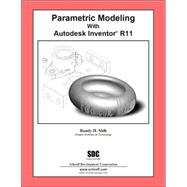
Parametric Modeling With Autodesk Inventor R11

by Shih, Randy H.
  • ISBN13:

    9781585032952

  • ISBN10:

    1585032956

  • Format: Paperback
  • Copyright: 2006-05-31
  • Publisher: Schroff Development Corp
  • Purchase Benefits
  • Free Shipping Icon Free Shipping On Orders Over $35!
    Your order must be $35 or more to qualify for free economy shipping. Bulk sales, PO's, Marketplace items, eBooks and apparel do not qualify for this offer.
  • eCampus.com Logo Get Rewarded for Ordering Your Textbooks! Enroll Now
List Price: $59.95

Summary

This book contains a series of ten tutorial style lessons designed to introduce Autodesk Inventor, solid modeling, and parametric modeling. It uses a hands-on, exercise-intensive approach to all the import parametric modeling techniques and concepts. The lessons guide the user from constructing basic shapes to building intelligent solid models and creating multi-view drawings. Table of Contents 1. Getting Started 2. Parametric Modeling Fundamentals 3. Constructive Solid Geometry Concepts 4. Model History Tree 5. Parametric Constraints Fundamentals 6. Geometric Construction Tools 7. Parent/Child Relationships and the BORN Technique 8. Part Drawings and Associative Functionality 9. Datum Features and Auxiliary Views 10. Symmetrical Features in Designs 11. Advanced 3D Construction Tools 12. Assembly Modeling - Putting It All Together

Table of Contents

Preface
Acknowledgments
Getting Started
Introduction
2(1)
Development of Computer Geometric Modeling
2(4)
Feature-Based Parametric Modeling
6(1)
Getting Started with Autodesk Inventor
7(1)
The Startup dialog box and Units Setup
8(1)
Autodesk Inventor Screen Layout
9(1)
Pull-down Menus
10(1)
Standard Toolbar
10(1)
Part Feature Toolbar
10(1)
Help Options
10(1)
2D Sketch Toolbar
10(1)
Graphics Window
11(1)
Graphics Cursor or Crosshairs
11(1)
Meassage and Status Bar Area
11(1)
Browser
11(1)
Mouse Buttons
12(1)
[Esc] - Canceling commands
12(1)
On-Line Help
13(1)
Leaving Autodesk Inventor
13(1)
Creating a CAD files folder
14
Parametric Modeling Fundamentals
Introduction
2(1)
The Adjuster design
3(1)
Starting Autodesk Inventor
3(1)
Autodesk Inventor Screen Layout
4(1)
Creating Rough Sketches
5(1)
Step 1: Creating a rough sketch
6(1)
Graphics Cursors
6(1)
Geometric Constraint Symbols
7(1)
Step 2: Apply/modify constraints and dimensions
8(3)
Modifying the dimensions of the sketch
11(1)
Step 3: Completing the Base Solid Feature
12(1)
Isometric View
13(1)
Dynamic Viewing Functions - Zoom and Pan
13(1)
Dynamic Rotation of the 3-D block - 3D Rotate
14(2)
Dynamic Viewing - Quick Keys
16(1)
Viewing Tools -- Standard Toolbar
17(1)
Display Modes
18(1)
Orthographic vs. Perspective
18(1)
Sketch plane -- It is an XY CRT, but an XYZ World
19(2)
Step 4-1: Adding an extruded feature
21(4)
Step 4-2: Adding a cut feature
25(3)
Save the Model
28(1)
Questions
29(1)
Exercises
30
Constructive Solid Geometry Concepts
Introduction
2(1)
Binary Tree
3(1)
The Locator Design
4(1)
Starting Autodesk Inventor
5(1)
GRID and SNAP intervals Setup
6(1)
Modeling Strategy - CSG Binary Tree
7(1)
Base Feature
8(2)
Model Dimensions Format
10(1)
Modifying the dimensions of the sketch
10(1)
Repositioning Dimensions
11(1)
Completing the Base Solid Feature
12(1)
Creating the next solid feature
13(4)
Creating a CUT Feature
17(3)
Creating a PLACED FEATURE
20(2)
Creating a Rectangular Cut Feature
22(2)
Questions
24(1)
Exercises
25
Model History Tree
Introduction
2(1)
The Saddle Bracket Design
3(1)
Starting Autodesk Inventor
3(1)
Modeling Strategy
4(1)
The Autodesk Inventor Browser
5(1)
Creating the Base Feature
5(3)
Adding the Second Solid Feature
8(1)
Creating a 2D sketch
9(2)
Renaming the Part Features
11(1)
Adjusting the Width of the Base Feature
12(1)
Adding a Placed Feature
13(2)
Creating a Rectangular Cut Feature
15(1)
History-based Part Modifications
16(1)
A Design change
17(3)
Questions
20(1)
Exercises
21
Parametric Constraints Fundamentals
Constraints and Relations
2(1)
Create a Simple Triangular Plate Design
2(1)
Fully Constrained Geometry
3(1)
Starting Autodesk Inventor
3(1)
Displaying existing constraints
4(2)
Applying Geometric/Dimensional Constraints
6(4)
Over-constraining and Driven Dimensions
10(1)
Deleting existing constraints
11(1)
Using the Auto Dimension command
12(1)
Adding Additional Geometry
13(3)
Constraint Settings
16(1)
Parametric relations
17(2)
Dimensional Values and Dimensional Variables
19(1)
Parametric Equations
20(1)
Viewing the Established Parameters and Relations
21(1)
Saving the Model File
22(1)
Questions
23(1)
Exercises
24
Geometric Construction Tools
Introduction
2(1)
The Gasket Design
2(1)
Modeling Strategy
3(1)
Starting Autodesk Inventor
4(1)
Creating a 2D Sketch
5(2)
Editing the Sketch by Dragging the Entities
7(2)
Adding Additional Constraints
9(1)
Using the Trim and Extend Commands
10(2)
The Auto Dimension command
12(2)
Creating Fillets and Completing the Sketch
14(1)
Fully Constrained Geometry
15(3)
Profile Sketch
18(1)
Redefining the Sketch and the Profile
19(4)
Create an OFFSET Cut Feature
23(3)
Questions
26(1)
Exercises
27
Parent/Child Relationships and the BORN Technique
Introduction
2(1)
The BORN Technique
2(1)
The U-Bracket Design
3(1)
Starting Up Autodesk Inventor
4(1)
Default sketch plane setting
4(1)
Applying the BORN Technique
5(2)
Creating the 2-D Sketch of the Base feature
7(4)
Create the First Extrude Feature
11(1)
The Implied Parent/Child Relationships
12(1)
Creating the Second Solid Feature
12(4)
Creating the First Cut feature
16(1)
Creating the Second Cut feature
17(2)
Examining the Parent/Child Relationships
19(1)
Modify a Parent Dimension
20(1)
A Design Change
21(1)
Feature Suppression
22(1)
A different approach to the CENTER_DRILL feature
23(2)
Suppress the Rect_Cut feature
25(1)
Creating a Circular Cut Feature
26(2)
A Flexible Design Approach
28(1)
Questions
29(1)
Exercises
30
Part Drawings and Associative Functionality
Drawings from Parts and Associative Functionality
2(1)
Starting Autodesk Inventor
3(1)
Drawing Mode - 2D Paper Space
3(2)
Drawing Sheet Format
5(2)
Using the Pre-defined Drawing Sheet Formats
7(2)
Deleting, Activating, and Editing a Drawing Sheet
9(1)
Adding a Base View
10(1)
Creating Projected Views
11(1)
Adjusting the View Scale
12(1)
Repositioning Views
13(1)
Displaying Feature Dimensions
14(2)
Repositioning and Hiding Feature Dimensions
16(2)
Adding Additional Dimensions -- Reference Dimensions
18(1)
Adding Center Marks and Center Lines
19(3)
Completing the Drawing Sheet
22(1)
Associative Functionality -- Modifying Feature Dimensions
23(3)
Questions
26(1)
Exercises
27
Datum Features and Auxiliary Views
Work Features
2(1)
Auxiliary Views in 2D Drawings
2(1)
The Rod-Guide Design
2(1)
Modeling Strategy
3(2)
Applying the BORN Technique
5(1)
Creating the Base feature
6(2)
Creating an Angled Work Plane
8(1)
Creating a 2D sketch on the work plane
9(1)
Using the Projected Geometry option
9(4)
Completing the Solid feature
13(1)
Creating an Offset Work Plane
14(1)
Creating another cut feature using the work plane
15(2)
Starting a new 2D drawing
17(1)
Adding a Base View
18(1)
Creating an Auxiliary View
19(2)
Displaying Feature Dimensions
21(2)
Adjusting the View Scale
23(1)
Adding Additional Dimensions
24(2)
Adding Center Marks and Center Lines
26(3)
Completing the Drawing Sheet
29(1)
Editing the Isometric view
30(1)
Questions
31(1)
Exercises
32
Symmetrical Features in Designs
Introduction
2(1)
A Revolved Design: PULLEY
2(1)
Modeling Strategy - A Revolved Design
3(1)
Starting Autodesk Inventor
4(1)
Setup the display of the Sketch Plane
4(1)
Creating the 2-D Sketch for the Revolved feature
5(4)
Creating the Revolved Feature
9(1)
Mirroring Features
10(2)
Creating A Pattern Leader Using Construction Geometry
12(5)
Circular Pattern
17(2)
Examining the Design parameters
19(1)
Drawing Mode -- Defining New Border and Title Block
19(3)
Creating a Drawing Template
22(1)
Automatically Retrieve Dimensions
23(1)
Creating Views
23(4)
Retrieve Dimensions -- Features option
27(2)
Associative Functionality -- A Design Change
29(2)
Adding Center lines to the Pattern feature
31(1)
Completing the Drawing
32(3)
Questions
35(1)
Exercises
36
Advanced 3D Construction Tools
Introduction
2(1)
A Thin-Walled Design: Dryer Housing
2(1)
Modeling Strategy
3(1)
Starting Autodesk Inventor
4(1)
Set up the display of the Sketch Plane
4(1)
Creating the 2D Sketch for the Base Feature
5(3)
Create a Revolved Feature
8(1)
Creating Offset Work Planes
9(1)
Creating 2D sketches on the Offset Work Planes
10(3)
Creating a Lofted Feature
13(2)
Creating an Extruded Feature
15(2)
Completing the Extruded Feature
17(1)
Create 3D Rounds and Fillets
18(1)
Using the Shell Operation
19(1)
Create a Pattern Leader
20(3)
Creating a Rectangular Pattern
23(2)
Creating a Swept Feature
25(1)
Define a 2D Sweep path
25(2)
Define the Sweep Section
27(2)
Completing the Swept Feature
29(2)
Questions
31(1)
Exercises
32
Assembly Modeling - Putting It All Together
Introduction
2(1)
Assembly Modeling Methodology
3(1)
The Shaft Support Assembly
4(1)
Additional Parts
4(3)
Collar
4(1)
Bearing
5(1)
Base-Plate
5(1)
Cap-Screw
6(1)
Starting Autodesk Inventor
7(1)
Placing the First Component
8(1)
Placing the Second Component
9(1)
Degrees of Freedom and Constraints
10(1)
Assembly Constraints
11(2)
Apply the First Assembly Constraint
13(2)
Apply a Second Mate Assembly Constraint
15(1)
Constrained Move
16(1)
Apply a Flush Constraint
17(2)
Placing the Third Component
19(1)
Applying an Insert Constraint
19(2)
Assemble the Cap-Screws
21(1)
Exploded View of the Assembly
22(2)
Editing the Components
24(1)
Adaptive Design Approach
25(4)
Delete and Re-apply Assembly Constraints
29(2)
Setup a Drawing of the Assembly Model
31(2)
Creating a Parts List
33(1)
Editing the Parts List
34(2)
Changing the Material Type
36(2)
Completing the Assembly Drawing
38(1)
Bill of Materials
39(2)
BOM from Parts List
39(1)
BOM from Assembly Model
40(1)
Conclusion
41(1)
Summary of Modeling Considerations
41(1)
Questions
42(1)
Exercises
43
Index

Supplemental Materials

What is included with this book?

The New copy of this book will include any supplemental materials advertised. Please check the title of the book to determine if it should include any access cards, study guides, lab manuals, CDs, etc.

The Used, Rental and eBook copies of this book are not guaranteed to include any supplemental materials. Typically, only the book itself is included. This is true even if the title states it includes any access cards, study guides, lab manuals, CDs, etc.

Rewards Program